
Designing a House in 60 Seconds: How to Build an AI Floor Plan in 7 Simple Steps
Have you ever wanted to design your own dream home? If you’ve ever played Minecraft or The Sims, you know how fun it is to build spaces from scratch.
But you don’t need to be a professional architect or know how to use complicated house plan drawing software to create a real blueprint anymore. Thanks to smart technology, you can map out a full layout and use an AI exterior design generator in less than a minute.
Whether you’re a professional looking for a fast mockup or just a tech fan exploring a new home exterior design app, here is how to use an online floor planner like DrawHome.com to build a complete house in 7 simple steps
Step 1: Open the Platform
First things first: head over to the home exterior design tool online. You don’t need any complicated setups or hidden downloads. Just click on to launch the web app directly in your browser, and select “Create New” to open up your blank canvas.
Step 2: Set Your Blueprint Specs
Before the software takes over, it needs a few basic instructions. Give your project a fun name, choose how you want to measure your space (like feet or meters), and select an auto-generated roof style—whether you want a classic gable roof or a modern flat design. Hit continue!
Step 3: Call In the AI Sidekick
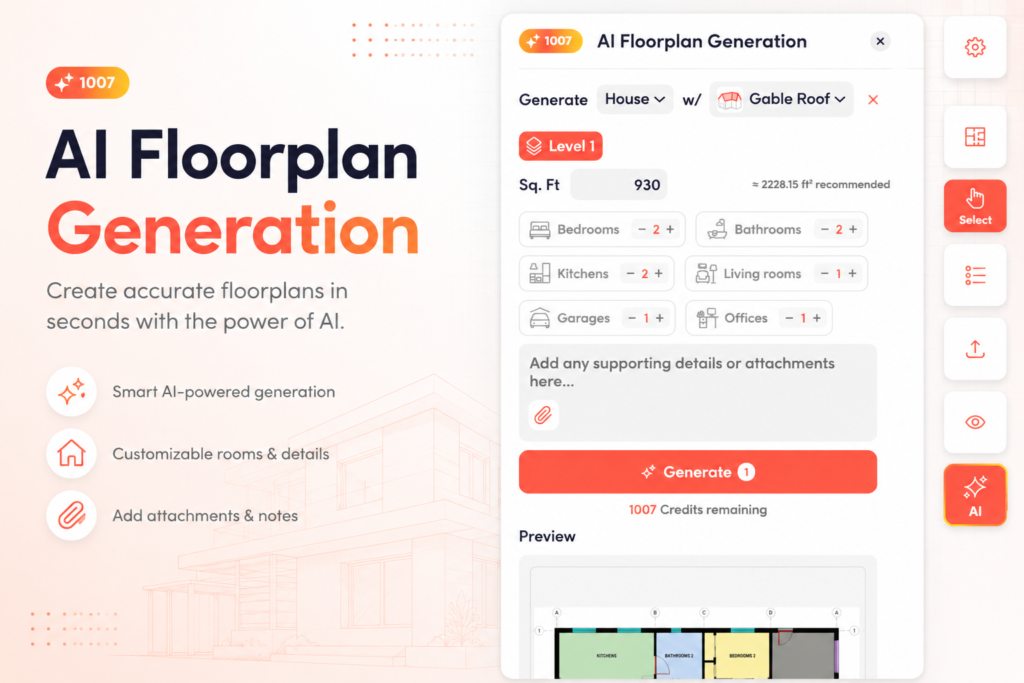
Look over at the right-hand menu. You’ll see an icon labeled AI. Click on it, and select “AI Floorplan Generation” from the pop-up menu. This opens up your built-in ai floor plan generator—where the magic happens.
Step 4: Customize Your Layout
How big do you want your house to be? Type in your desired total square footage (for example, 930 sq. ft.). Next, choose how many bedrooms, bathrooms, and living rooms you want. Once you’re ready, hit “Generate” and watch the AI instantly draw up a perfect floor plan preview.
Step 5: Lock It In
If you love the layout the AI created for you, just click “Place in Project.” The system will instantly lock the plan into a fully detailed 2D grid, complete with walls, doors, and exact measurements.
Step 6: Explore and Customize in 3D
Now comes the coolest part. Switch the view from 2D to 3D. Suddenly, you’re flying through a realistic model of your house! Open up the software’s catalog to activate your home exterior design tool capabilities. You can change the ground terrain to lush green grass, adjust the background scenery, and swap out the exterior wall materials and roof colors to match your personal style.
Step 7: Render Your High-Res Masterpiece
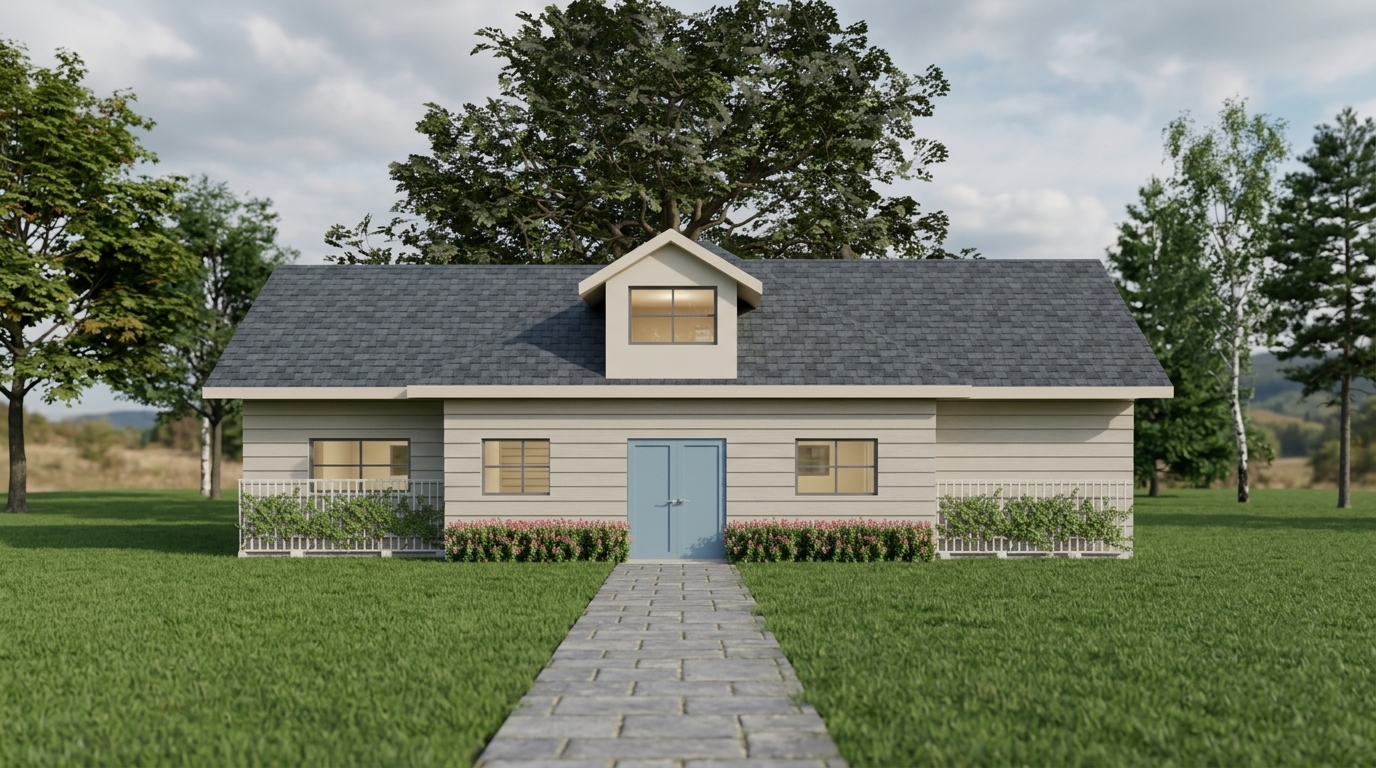
Ready to see what it would look like in real life? Head back to the AI menu and click “AI Render” to use the ai home exterior design tool. Set your landscape preferences, pick your quality settings, and hit “Render”. In just a few moments, the ai exterior design generator will hand you a stunning, photorealistic picture of your brand-new digital home.
Designing spaces used to take days of tedious drafting. Now, with an all-in-one online floor planner, anyone can bring their imagination to life in 60 seconds flat. Give it a try what does your dream home look like?